Ramayana’s Jatayu Ji AI Video Editing Prompt (2026)
Jatayu Ji is a famous character from the Hindu epic Ramayana. He is known for his bravery and his attempt to save Sita from Ravana. His story represents courage, loyalty, and sacrifice.
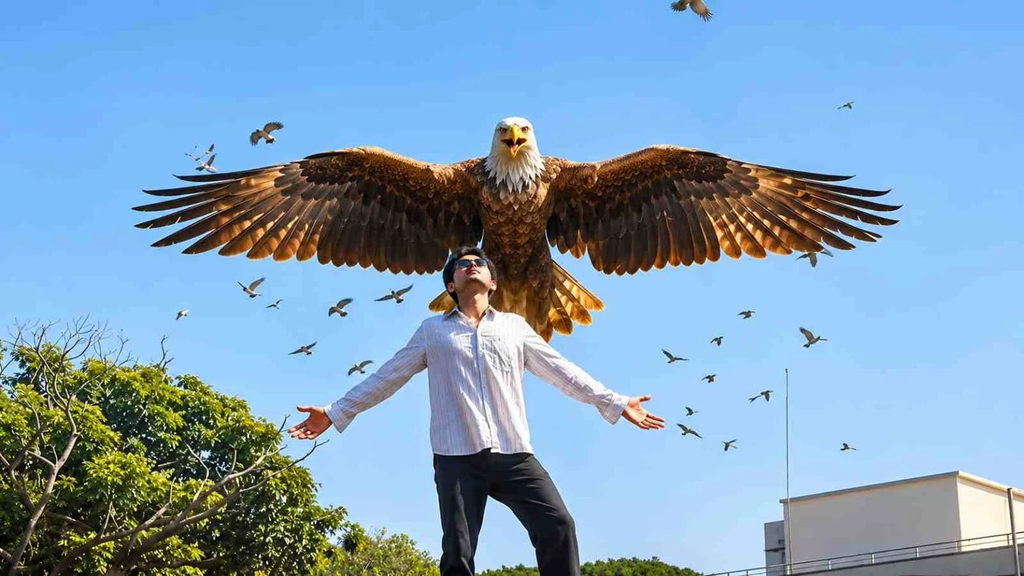
The trending AI video takes inspiration from this legendary character. In the video, a person stands in an open area with their arms spread wide. Suddenly, a giant mythical eagle appears behind them with its enormous wings open. Small birds fly across the sky, and cinematic lighting makes the whole scene look like a movie. On prompt Seen you can get all types of prompts and templates.
You can create a similar effect using your own photograph. AI video generators turn your still image into a moving scene while adding the giant bird, flying effects, and dramatic atmosphere.
Why Is Jatayu Ji AI Video Editing Trending?
There are several reasons behind the popularity of this AI editing style.
- Ramayana inspiration: The video takes inspiration from a well-known character, which makes it interesting for viewers.
- Cinematic effects: The giant eagle, flying birds, and dramatic background create an impressive visual effect.
- Easy to create: You can start with one clear photograph instead of recording a complete video.
- Social media appeal: The vertical format works well for Instagram Reels, YouTube Shorts, and Facebook Reels.
- Creative AI technology: AI tools can create realistic movements and visual effects from simple text prompts.
The combination of mythology and modern AI editing makes this trend different from ordinary photo-to-video effects. Also check: Viral Sheru Bhai AI Photo Editing Prompt & Das Mereya Dilbara Ve CapCut Template.
What Do You Need to Create a Jatayu Ji AI Video?
Before starting, prepare a few things. You do not need professional editing equipment.
| Requirements | Purpose |
|---|---|
| Smartphone or computer | To access AI tools |
| Clear photograph | Your main reference image |
| Google Flow | To generate the AI video |
| AI video prompt | To describe the Jatayu scene |
| CapCut or VN | To add music and final effects |
| Internet connection | To generate and export the video |
Google Flow is one option for creating this type of AI video. You can also experiment with other image-to-video generators that support reference images and text prompts. Available models, features, and generation credits may vary.
How to Create Trending Ramayana’s Jatayu Ji AI Video
Follow these steps to create your own Jatayu Ji AI video.
Step 1: Choose a Clear Photo
First, select a good photograph of yourself. Your image plays an important role in the final result.
For better results, choose a picture with:
- Your face clearly visible.
- Good natural lighting.
- Your upper body or full body in the frame.
- Enough empty space around and above you.
- A simple outdoor background.
A standing photograph with the sky in the background is a good choice. Avoid blurry images, group photos, and pictures with too many objects.
Step 2: Open Google Flow
Now open Google Flow in your browser and sign in with your Google account.
Create a new project and select an image-to-video generation option. The available interface and model choices may change over time.
Upload the photograph you selected in the previous step.
Step 3: Copy the Jatayu Ji AI Video Prompt
After uploading your image, you need to provide an AI prompt. This tells the generator what kind of scene you want.
Copy the following prompt and paste it into the prompt box.
Jatayu Ji AI Video Editing Prompt
Step 4: Select Video Settings
Before generating your video, check the available settings. For social media content, these are useful starting choices:
| Setting | Recommended choice |
|---|---|
| Video format | 9:16 for Reels and Shorts |
| Duration | 8–10 seconds, if available |
| Quality | Highest available |
| Camera movement | Locked or stable |
| Generation mode | Image to Video |
If you want a wider cinematic video, you can also choose 16:9.
Step 5: Generate Your AI Video
Once everything is ready, click the Generate button.
The AI tool will process your photograph and prompt to create the scene. Wait for the generation to finish.
When the video is ready, watch it from beginning to end. Check whether your face looks natural, the eagle appears behind you, and its wings move smoothly.
If the result is not satisfactory, adjust your prompt and generate another version.
Step 6: Download and Edit Your Video
After generating the video, export it to your device.
You can use CapCut or VN to make the final changes.
Here are some editing ideas:
- Add suitable background music.
- Adjust brightness and contrast.
- Add a slow-motion effect if needed.
- Synchronize the eagle’s appearance with the music.
- Remove unnecessary parts from the beginning or end.
- Keep the original video quality when exporting.
Your Jatayu Ji AI video is now ready to share.
Best AI Tools for Jatayu Ji Video Editing
- Google Flow: Generate cinematic AI videos.
- Google Gemini: Create AI images and videos.
- CapCut: Add music, filters, and effects.
- VN Editor: Trim videos and add transitions.
Tips to Make Your Jatayu Ji AI Video Look Better
A good prompt is important, but your original photograph and editing choices also affect the result.
Follow these tips:
- Use a high-quality photo: A clear image helps the AI understand your face and body.
- Choose the right background: An open sky gives the giant bird enough room to appear.
- Keep your face natural: Include instructions to preserve your original facial features.
- Describe the bird clearly: Mention its size, feather color, wings, and position.
- Use smooth movements: Avoid asking for too many actions in a short video.
- Choose vertical format: Use 9:16 when creating content for Instagram Reels and YouTube Shorts.
- Try different prompts: Small changes can produce different results.
- Check the final video: Watch it carefully before sharing it online.
Common Problems and Their Solutions
- AI Changes Your Face: Use a clear photo and add face-preservation instructions.
- Jatayu Does Not Appear Properly: Clearly describe a giant eagle with fully spread wings.
- Wings Look Distorted: Use simple prompts and realistic movement instructions.
- Video Generation Fails: Check your internet connection and available AI credits.
- Video Looks Blurry: Upload a high-quality photo and select the best output quality.
Conclusion
The Trending Ramayana’s Jatayu Ji AI Video Editing trend is a creative way to combine mythology with modern AI technology. You can create a similar cinematic video using your own photograph, a suitable AI prompt, and an image-to-video generator.
Google Flow is a useful starting point for this effect, while CapCut and VN can help you add music and polish the final result. Choose a clear photo, use the prompts shared in this guide, and experiment with different styles until you get the result you want.
Now you can create your own Jatayu Ji AI video and share it with your friends on Instagram Reels, YouTube Shorts, and other social media platforms.